Home

ATC Network (beta)

Voice air traffic control, with Xbox and PC on the same frequency

The Alfaero ATC Network puts real controllers, other members of the community, into your Microsoft Flight Simulator flight. Those flying on Xbox and those flying on PC are on the same network and hear each other on the same frequency. The network is in beta, open to any Alfaero account.

Who it is for

  • Those who fly Microsoft Flight Simulator on Xbox
  • Those who fly on PC
  • Those who want to control: tower, approach and center
ATC Network voice diagram: pilot on Xbox and pilot on PC on the same frequency with the controller
Real app screen

Features

Tap a feature to see how it works, how to use it and the technical details.

01 / 06

Voice between Xbox and PC

The frequency is the same for everyone: the app is your radio, on any platform.

How it works

The console does not talk to the network directly. The Alfaero Link add-on sends your flight, from Xbox or PC, to your account, and Alfaero EFB (on phone, tablet or Windows) becomes the radio: that is where you talk and listen. Since everyone joins through the same account and the same network, a pilot on Xbox and another on PC tuned to 118.100 hear each other, and the controller hears both.

How to use

  1. Install and link Alfaero Link in the simulator, on Xbox or PC.
  2. Start the flight and open the ATC Network in Alfaero EFB.
  3. Choose Talk and listen and connect a headset with a microphone.
  4. Hold the talk button to transmit.

Technical details

Pilot platforms
Microsoft Flight Simulator 2020 and 2024, on Xbox and PC
Where the radio is
Alfaero EFB on phone, tablet or Windows
Modes
Talk and listen, listen only, text only
Transmission
Push to talk, cuts off at 60 seconds
Who you hear
Only those on the same frequency
02 / 06

Frequency that follows the aircraft radio

Change COM1 in the simulator and the network frequency changes too.

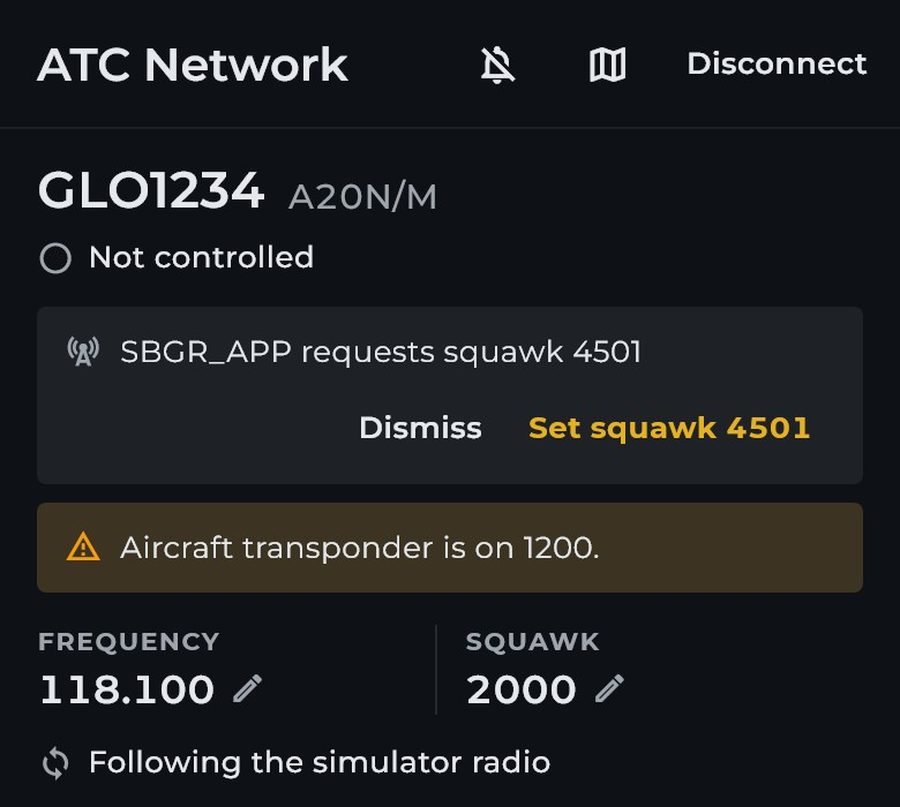
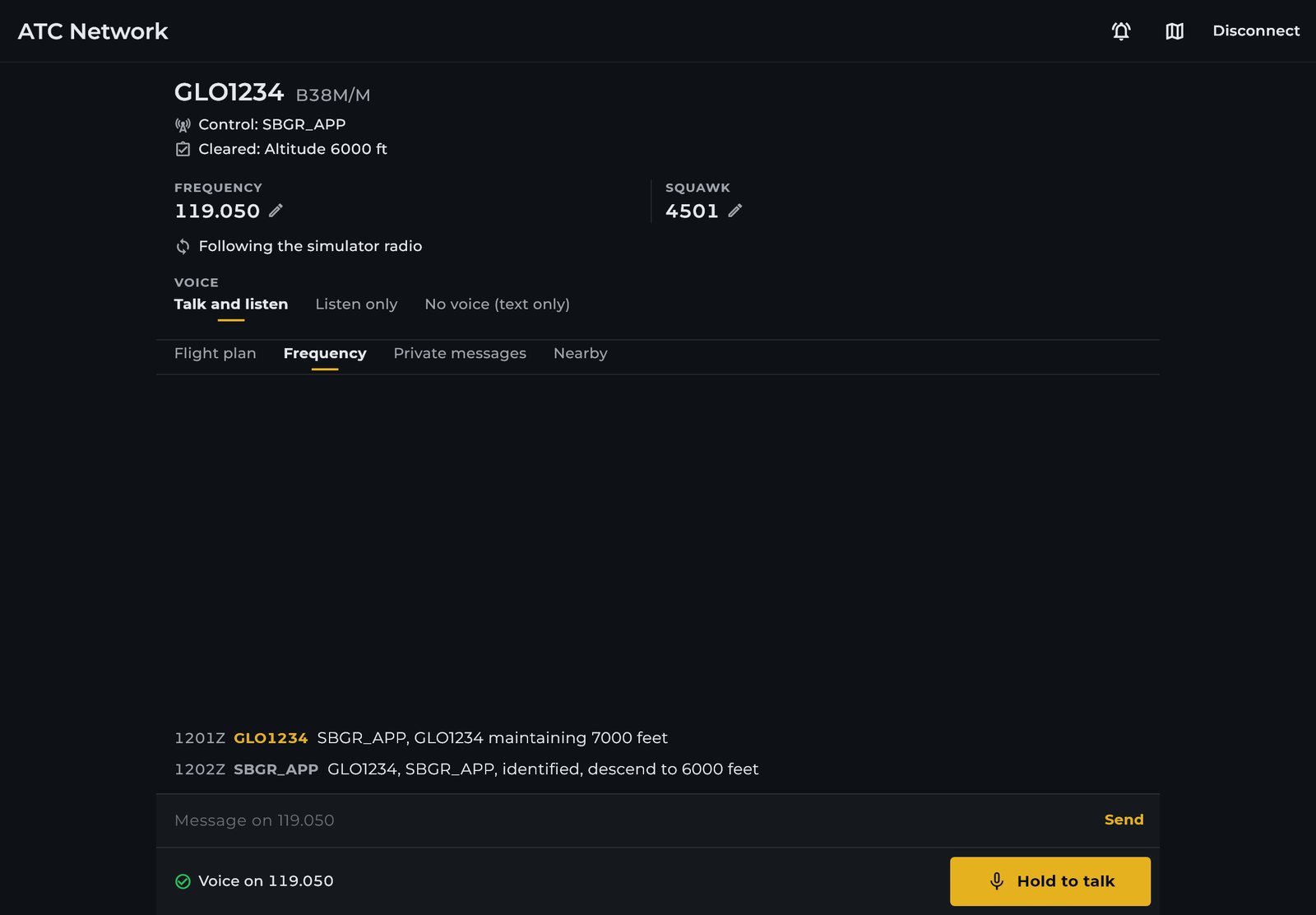
Pilot screen in the ATC Network with the frequency, the squawk and the current controller
Real app screen

How it works

By default, your network frequency follows the aircraft's COM1 radio in the simulator. If you edit it by hand, the app warns you and offers to sync again. The transponder is also checked: if the aircraft code does not match the network squawk, a warning appears.

How to use

  1. Tune COM1 in the simulator as you would on a real flight.
  2. Check the frequency on the network screen.
  3. Set the aircraft transponder to the assigned squawk.

Technical details

Range
118.000 to 136.975
Sync
Follows the simulator COM1
Transponder
Warning when the code does not match
03 / 06

Flight plan for the controller

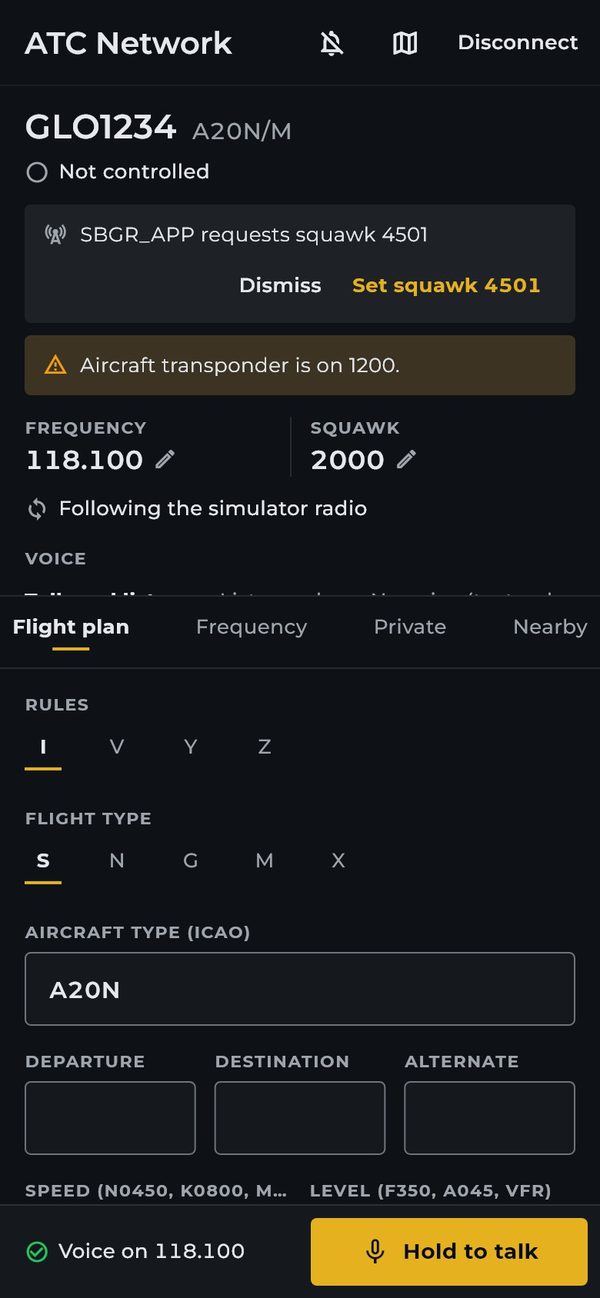
Rules, aircraft, route and level reach the controller's strip.

Illustration of the flight plan sent to the controller
Real app screen

How it works

Before calling ATC, you file the flight plan. It appears on the controller's strip with route, level and destination. Changed the route? Send it again: the revision goes up and the controller receives the new version.

How to use

  1. On the network screen, open the Flight plan tab.
  2. Fill in rules, aircraft, departure, destination, speed, level and route.
  3. Tap send and check the revision.

Technical details

Rules
IFR, VFR and mixed
Speed
Knots, km/h or Mach
Level
Flight level, altitude or VFR
Revisions
Each submission bumps the revision
04 / 06

One tap clearances

Squawk, contact, level and heading arrive as a card with an apply button.

Illustration of a controller clearance card
Real app screen

How it works

What the controller decides arrives as a card on your screen: squawk, frequency change, release, level or heading. One tap applies it (for example, tunes the new frequency) and notifies the controller in writing. On voice, you read back as usual.

How to use

  1. Read the card that appears on the screen.
  2. Tap the button to apply.
  3. Comply in the aircraft and read back on the frequency.

Technical details

Types
Squawk, contact, release and clearance
Response
In writing when you tap the button
05 / 06

Be the controller

Open tower or approach on your phone, tablet or Windows PC.

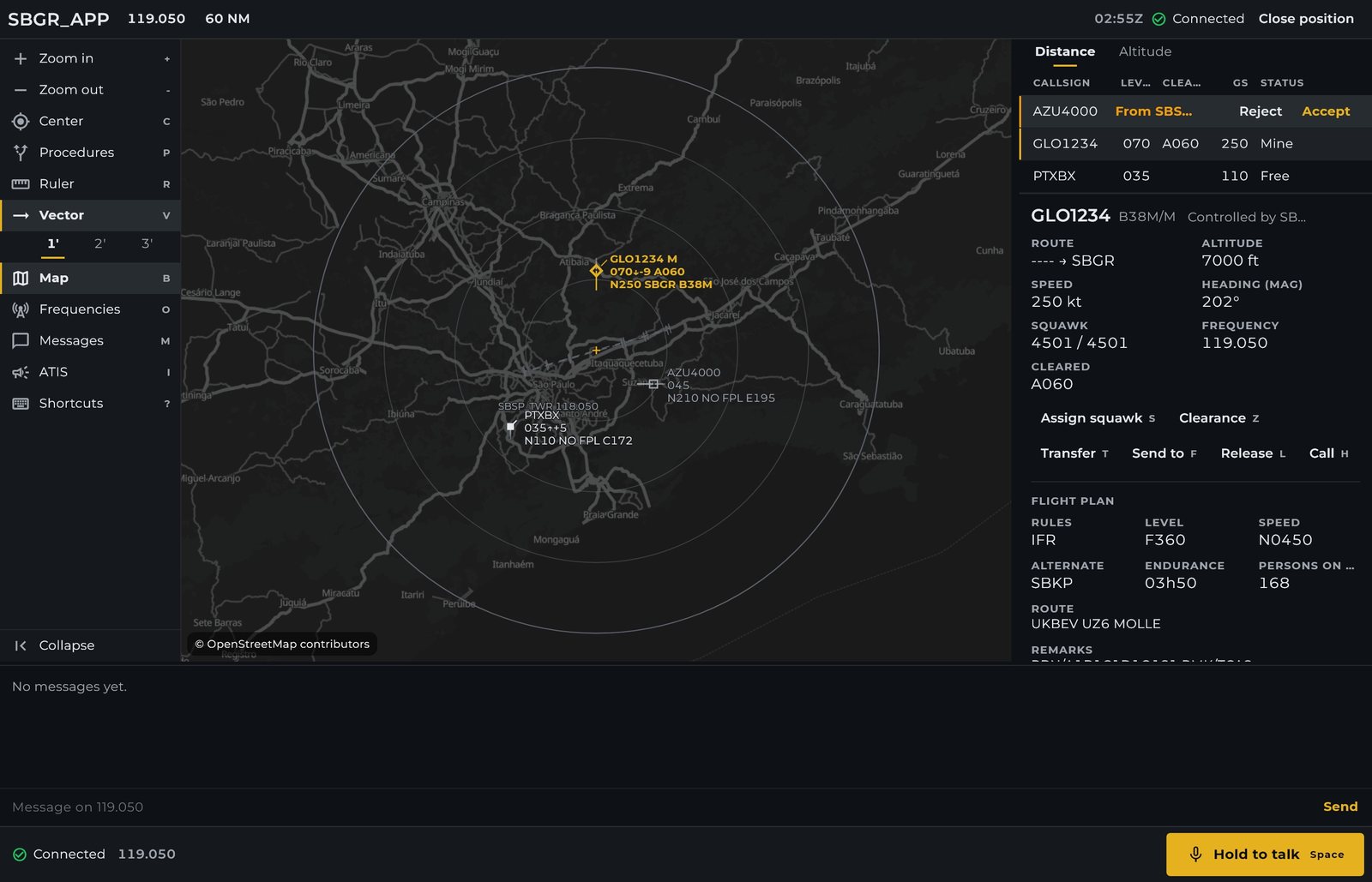
Controller screen in the Alfaero app with the radar and the flight plan
Real app screen

How it works

Any account can open a control position. The controller sees the aircraft on radar over the map, reads the flight plan, assigns squawk and issues clearances, by voice and by text.

How to use

  1. In Alfaero EFB, open Control (ATC).
  2. Choose the aerodrome and the position.
  3. Watch the radar and call the aircraft.

Technical details

Where
Phone, tablet and Windows
Tools
Radar, flight plan, squawk and clearances
Communication
Voice and text
06 / 06

Near me

Controllers and pilots nearby, with frequency, distance and ATIS.

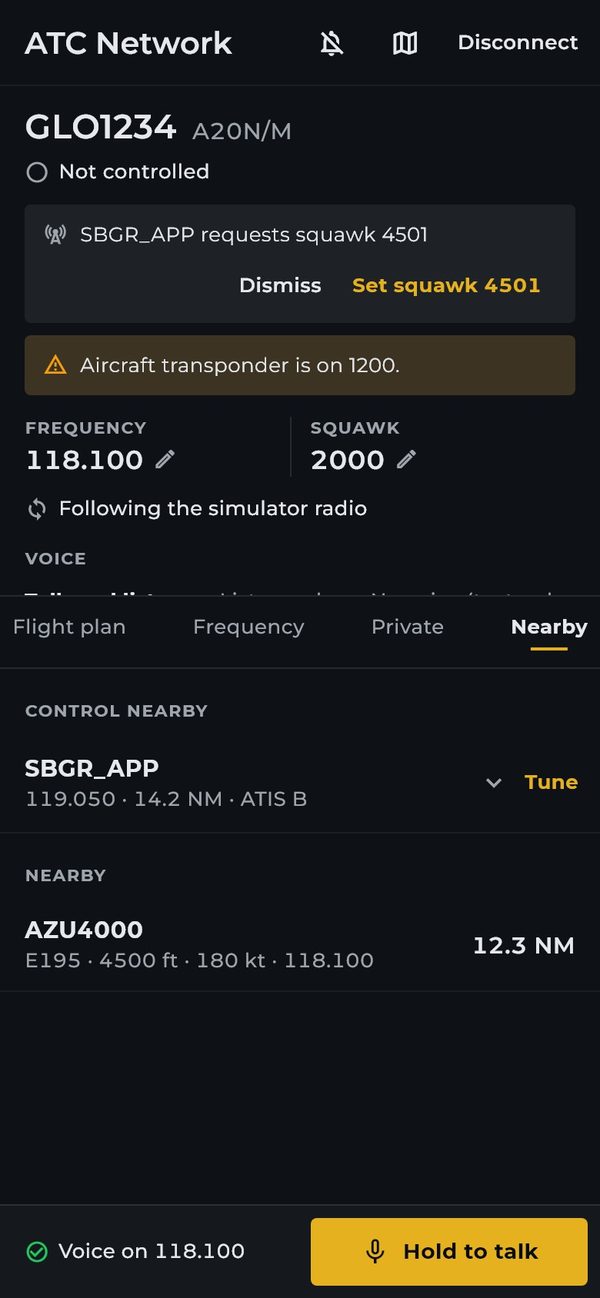
Illustration of the list of nearby controllers and pilots
Real app screen

How it works

The Near me tab shows who is controlling your area, with frequency, distance and the ATIS letter, and the pilots within a 100 nautical mile radius. One tap tunes the controller's frequency.

How to use

  1. Open Near me.
  2. Read the controller's ATIS.
  3. Tap tune and make the initial call.

Technical details

Pilots
Up to 100 nautical miles
Controllers
Position, frequency, distance and ATIS
Private messages
To any callsign

Frequently asked questions

Can Xbox players talk to PC players?

Yes. The frequency belongs to the network, not the console. Pilots on Xbox and on PC on the same frequency hear each other and talk to the same controller.

Do I need a microphone?

It is not required. Without a microphone you choose listen only and reply by text, or use text only.

What do I need to join?

Microsoft Flight Simulator on Xbox or PC with the Alfaero Link add-on, an up to date Alfaero EFB and an Alfaero account.

Is the network paid separately?

There is no separate sign up: any Alfaero account can connect. The network is in beta and gets new features over time.

Try it on your next flight

Download Alfaero on your phone, tablet or Windows PC and use everything during the trial period.