



Safety and information
Split screen on the tablet: map on one side, what to read on the other
A jet cockpit shows the map and the flight plan side by side, on the same screen. Alfaero does this on the tablet, Android and iPad: the map stays on one side and what you need to read goes on the other.
Step by step
- Tap Split screen in the map side panel. The other side holds the notes, the briefing and the ATC clearance.
- Drag the divider to give one side more space. The app remembers the ratio.
- Tap Info in the bottom bar and the panel shows the aerodrome and the METAR, without closing the map.
- Swapping sides and closing are on the divider itself. Weight and balance and notes can also fill the panel.
- To go back to the full map, tap Map. For the map only, such as on final, use Full screen in the same side panel.
- With the tablet upright, the split is top and bottom. The More menu also has the Split screen shortcut.
Frequently asked questions
Does it work on the phone?
The feature was made for tablets, Android and iPad, where there is room for the two panels side by side or one above the other.
Does the app remember the ratio?
Yes. After you drag the divider, Alfaero saves the ratio you chose.
More tutorials
All tutorials-
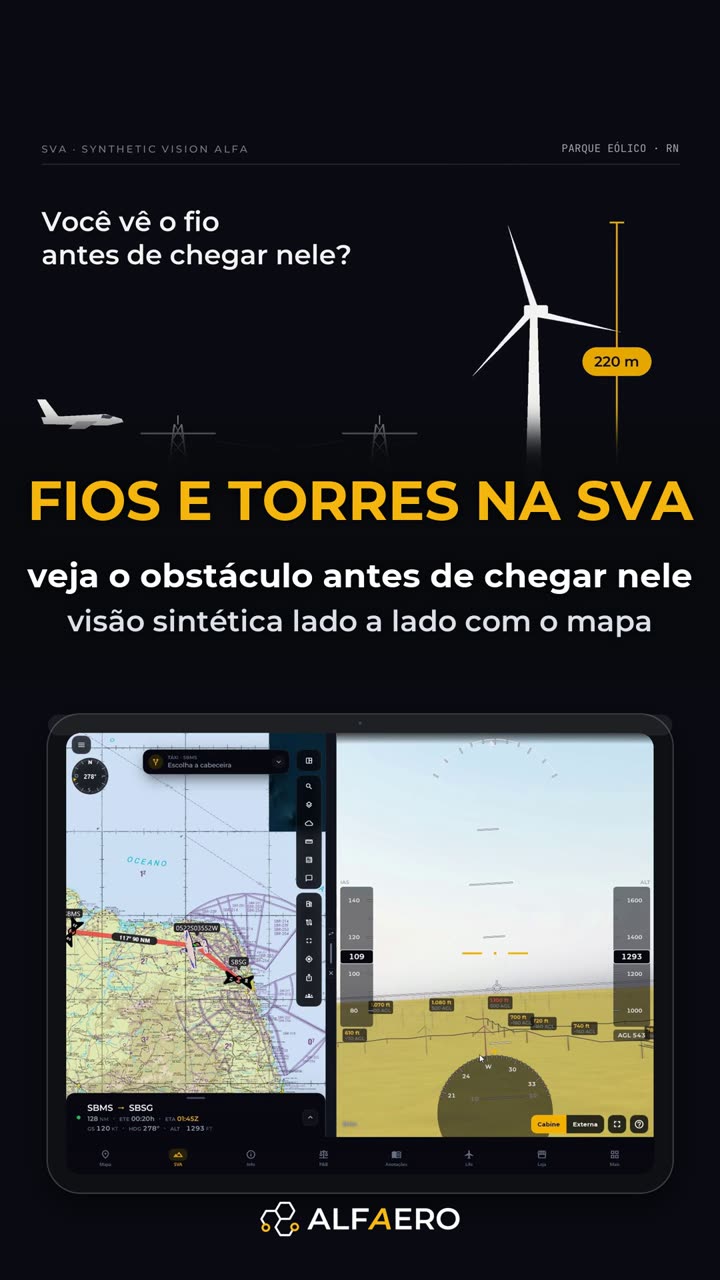 1:07 Synthetic vision and power lines 3D terrain with towers, wind turbines and power lines, next to the map.
-
 0:53 NOTAM and METAR explained by AI The coded text of the NOTAM and the METAR in plain language.
-
 1:24 Weight and balance without a spreadsheet Drag the load and watch the CG on the envelope, with a PDF report.
Do it on your device
Download Alfaero and repeat the tutorial on your phone, tablet or Windows.